How to link your Google Business Profile in the Red Rock app
Link your Google listing so members see your Google rating on your profile.

When a member finds you in Discover, your profile is how they decide whether to try you. Linking your Google Business Profile adds your Google rating to that profile, with a link to your Google listing. It takes about a minute.
Why it's worth doing
Red Rock Trade doesn't have ratings or reviews of its own. When a member confirms a trade, that just posts the credits. Instead, every profile shows "Member since" with the month the business joined, and how many trades it has completed.
Your Google rating adds what members can't see from that line alone: how your customers outside the network rate you. A business with years of Google reviews is easy to say yes to.
Step 1: Open Google listing
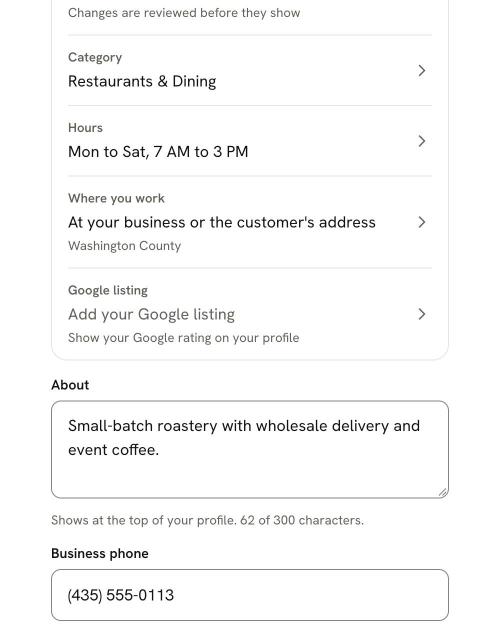
- 1Tap the Business tab.
- 2Tap Edit profile.
- 3Tap the Google listing row. Until you link one, it reads "Add your Google listing."
Step 2: Find your business on Google
The search box starts with your business name already filled in.
- Search by business name or street address. Type at least 3 letters.
- No storefront? You'll still show up. Businesses that serve customers at their location, like mobile detailers, window washers or cleaners, can appear even when Google hides their address.
- Too many look-alikes? Add your city, or search your street address instead.
Results show each business's name and address, with Google Maps attribution under the list.
Step 3: Pick your listing
Tap your business in the list to select it, then tap Use this listing. The app confirms: "Linked. Your Google rating now shows on your profile."
Back on Edit profile, the Google listing row now shows your listing's name and street.
What members see
On your profile, members see a small Google card with:
- your star rating and number of reviews
- "Google Maps" attribution
- a See on Google link that opens your listing in Google Maps, where they can read the reviews
It sits alongside your "Member since" and trades completed line. If your Google listing doesn't have a rating yet, the card doesn't show until it does.
If your business doesn't appear
- Check how your name and city appear on Google. Search exactly what your listing says, even if it's spelled a little differently from your sign.
- Try your street address. It often finds a listing that a name search misses.
- Service-area businesses: search the name on your Google listing, plus your city.
No Google listing at all? Tap I don't have a Google listing. Your profile still shows "Member since" and your trades completed, and the row reads "Not on Google." If you'd like one, Google explains how to create a free Business Profile at business.google.com. Once it's live on Google, come back and link it.
Changing or removing the link
To switch to a different listing, go back to Business, then Edit profile, then Google listing, pick the right one and tap Use this listing.
To remove the link, open the same page and tap I don't have a Google listing. Your profile stops showing a Google rating. You can add a listing again any time.
A quick check on our side
If the name on the Google listing looks different from your business name on Red Rock Trade, we may check that the listing matches your business. Nothing changes for you while we look, and we'll reach out if we have a question.
Next steps
New here? Set up the rest of your profile with your first trade, then learn how to trade with members in the app. Not a member yet? Get started.
Trade with businesses near you.
Every new member starts with 100 welcome credits to spend with any member. It’s a gift, not a loan, so you never owe it back.